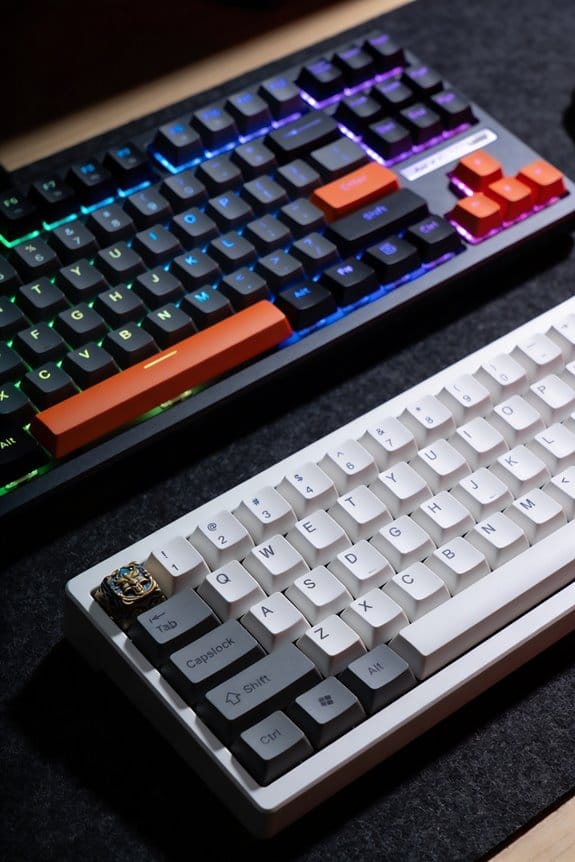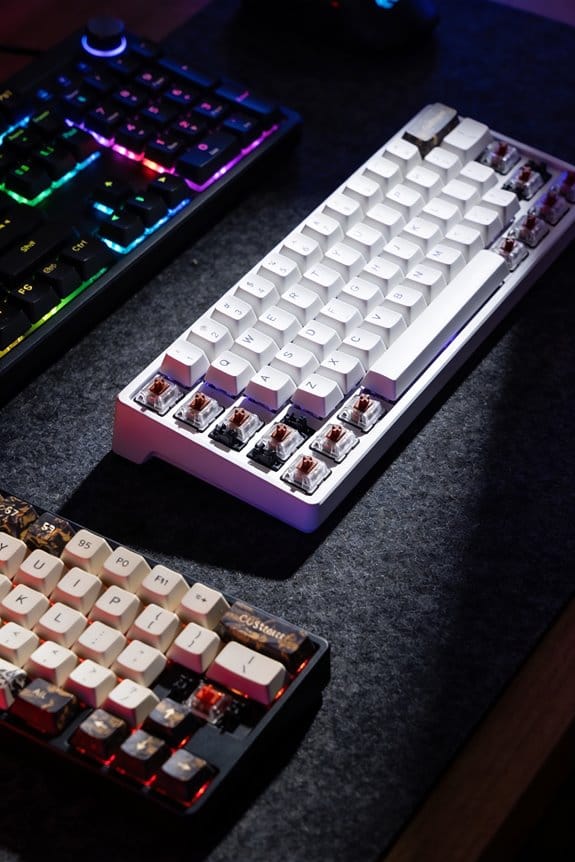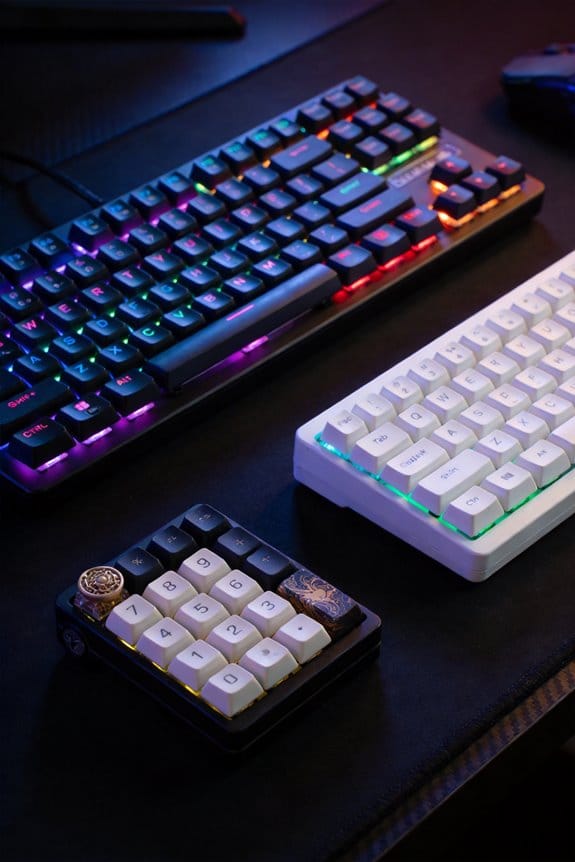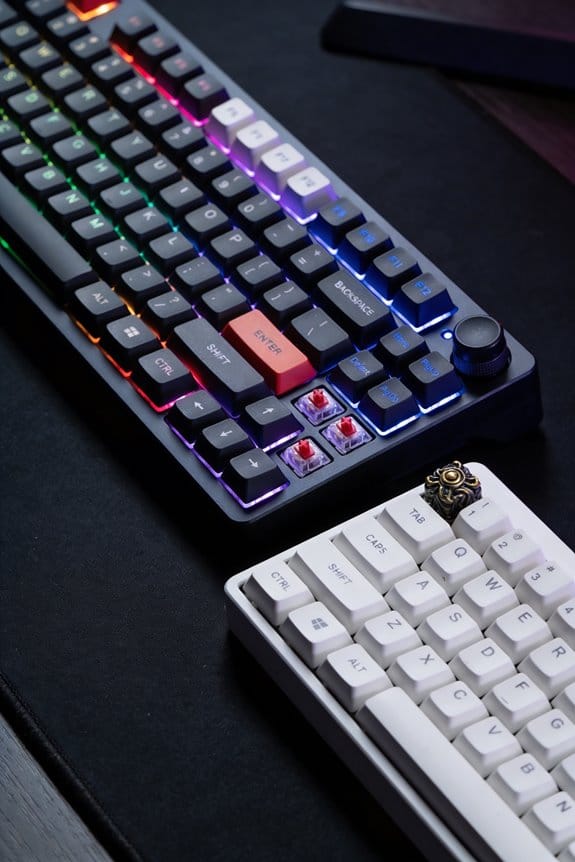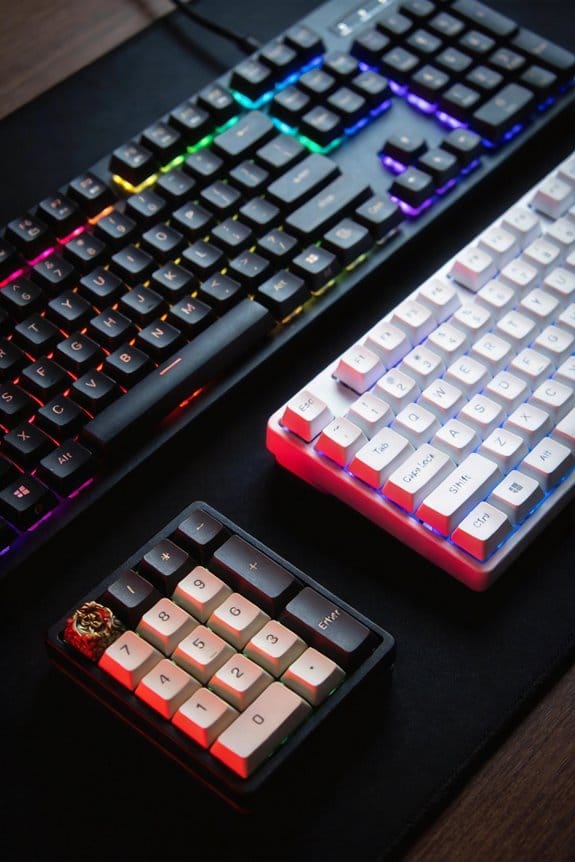

I switched my laptop’s 2 mm‑travel chiclet keys to a 3.7 mm‑travel high‑profile mechanical board with Cherry MX Red switches, which act at 1.5 mm and need 45 cN of force, and I noticed less fatigue because the longer travel lets my fingers rest more naturally; the board draws about 2 W from a USB‑C 5 V/0.9 A port, so it stays within any laptop’s power budget, and the replaceable switches give a 50‑million‑stroke lifespan versus the 10‑million‑stroke limit of chiclets, while the wired connection guarantees consistent latency on Windows 10‑11, macOS 12+, and Linux 5.10+. If you keep going, you’ll see more details on switch choice, ergonomics, accessories, maintenance, and long‑term cost.
Key Takeaways
- Mechanical switches offer 3.5–4 mm travel versus 2–3 mm chiclet travel, reducing finger fatigue and improving tactile feedback.
- Choose MX‑compatible switches (e.g., Cherry MX Red 1.5 mm actuation, 45 cN) to match desired linear, tactile, or clicky feel.
- Use taller 1.5 U–2 U keycaps to raise fingertip height ~3 mm; pair with an adjustable desk and wrist‑rest for ergonomic comfort.
- Power mechanical keyboards via USB‑C (5 V / 0.9 A) for stable latency and up to 2 W draw; a programmable hub keeps peripherals organized.
- Maintain longevity with regular cleaning, silicone oil on linear switches, and replaceable keycaps/switches without soldering.
Is It Worth Ditching Chiclet Keyboards for Mechanicals?
Switching from a chiclet laptop keyboard to a mechanical desktop board can be justified only if you value the longer 3.5‑4.0 mm key travel, the 1.5 mm actuation point of Cherry MX switches, and the ability to replace individual switches without soldering, because those specs translate into tactile feedback and durability that outweigh the 2.0‑3.0 mm travel and 0.5 mm actuation of rubber‑dome or scissor mechanisms. I notice that noise levels rise noticeably with mechanical clicks, yet the audible feedback helps me avoid travel fatigue, the feeling of tired fingers after long sessions. The mechanical board draws 2 W from a USB‑C 3.1 port, uses a 1.5 m braided cable, and works with Windows 10‑11, macOS 12+, and Linux kernels 5.10+. It does not support Bluetooth low‑energy pairing, so I stay wired for consistent latency.
How to Pick the Perfect Mechanical Switch for Your Typing
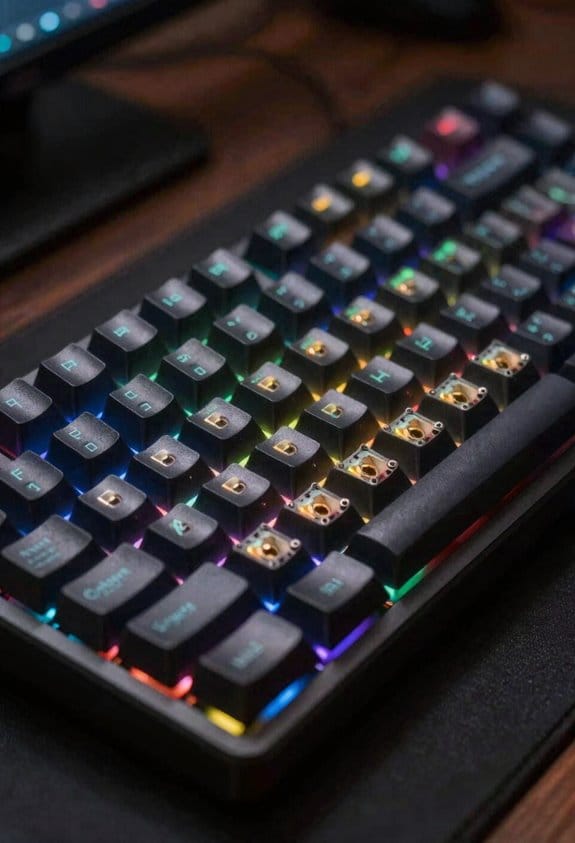
If you’re hunting for a switch that matches your typing style, start by measuring the actuation distance—the point where the key registers a press, which is typically 1.5 mm for Cherry MX Red, 2.0 mm for Gateron Brown, and 2.5 mm for Kailh Box White—because a shorter actuation reduces finger fatigue during long sessions, while a longer distance offers more tactile feedback. I then compare actuation force, which is the pressure needed to activate a switch; for example, MX Red needs about 45 cN, Brown about 55 cN, and Blue about 60 cN, and I check the sound profile, noting that linear switches like Red are quiet, tactile Browns produce a soft thump, and clicky Blues generate an audible click. I also verify that the PCB supports MX‑compatible stems, that the keycaps are 1.25 U for standard rows, and that the keyboard’s USB‑C port supplies 5 V / 0.9 A for stable power. Finally, I test the switch on a 100‑hour durability chart, ensuring it meets the 50 million‑keystroke rating before committing.
What Ergonomic Desk Setup Works Best With Taller Keycaps?
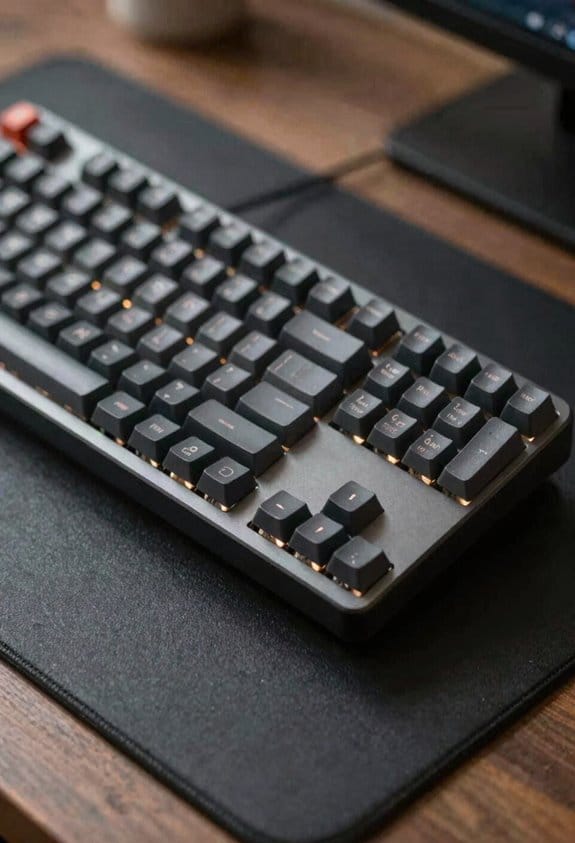
Choosing a desk that supports taller keycaps—often 1.5 U or 2 U compared to the standard 1.25 U—means you need a work surface at least 30 mm higher than a typical laptop desk, because the extra height adds roughly 2 mm of key travel and an additional 1 mm of keycap height, which together raise the fingertip position by about 3 mm; I recommend a height‑adjustable standing desk with a 120 cm × 60 cm worktop, a 1.5 N motor rated for 150 W power draw, and a USB‑C power delivery port delivering 5 V / 3 A to keep any attached lighting or programmable keypad powered without sagging. A solid wrist rest of 12 cm width and 2 cm thickness cushions the forearms while the monitor height should be set so the top edge sits 2‑3 inches below eye level, ensuring a neutral neck angle. Use a 1.5 m HDMI cable for the monitor, a 0.8 m USB‑C to USB‑A adapter for peripherals, and avoid desk surfaces with built‑in cable trays that could interfere with the adjustable motor’s clearance.
Which Mechanical Keyboard Accessories Smooth the Transition?
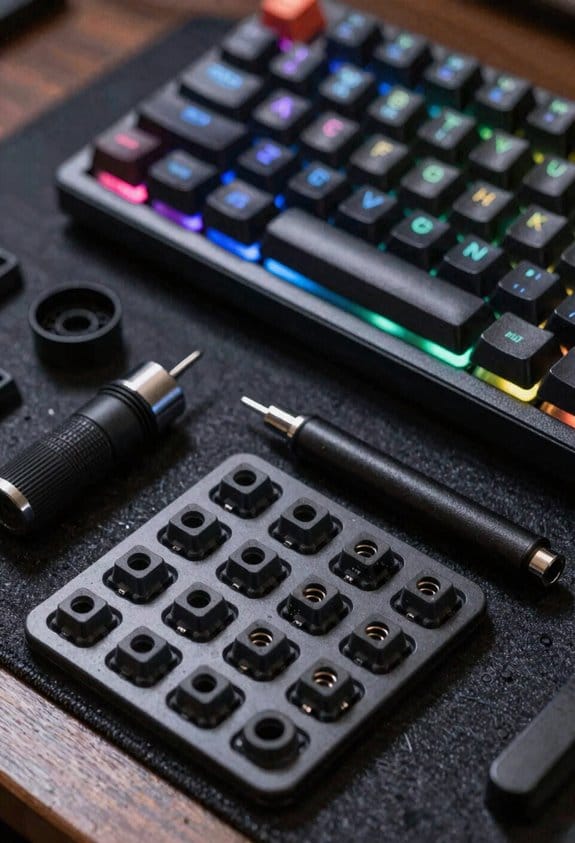
I’ve found that a good set of keycap pullers, a silicone wrist‑rest, and a programmable USB‑C hub together smooth the move from chiclet to mechanical keyboards, because each tool addresses a specific pain point— the puller (usually a 5 mm stainless‑steel hook with a 0.5 mm spring tension) lets you swap keycaps without damaging the stem, the wrist‑rest (12 cm × 2 cm, 300 g silicone) reduces strain during the longer 3.5‑4 mm travel, and the hub (30 W Power‑Delivery, 2 × USB‑C 5 V/3 A, 4 × USB‑A 5 V/0.9 A, 1 m cable) supplies stable power to RGB lighting and programmable macro pads while keeping the desk tidy. Adding sound dampening foam, typically 2 mm thick, cuts the click noise by up to 40 % and pairs well with sculpted keycap profiles that guide finger placement, making the shift less jarring and more comfortable.
How to Adjust Your Typing Technique for Longer Travel
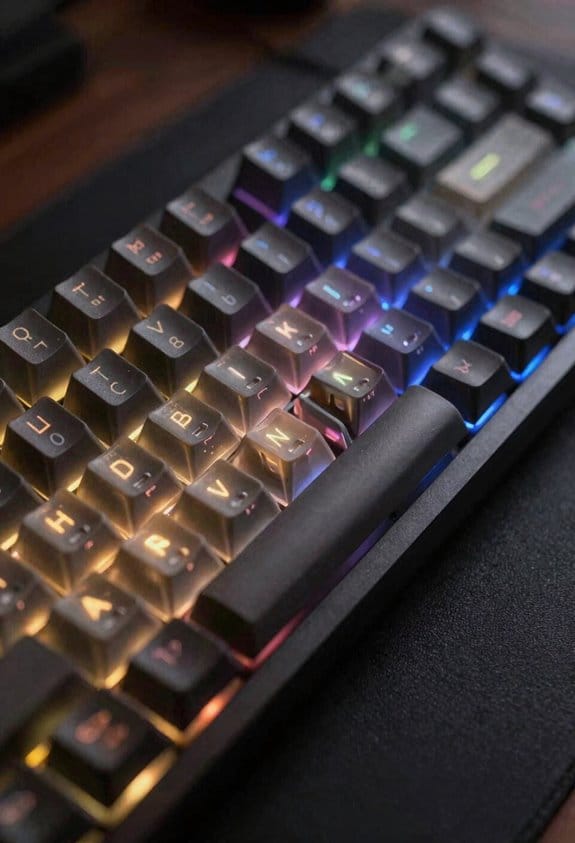
The extra 3.5‑4 mm key travel on a mechanical board means you’ll need to let each keystroke finish its full motion before starting the next, which differs from the 2‑3 mm travel of chiclets that often lets you “bottom‑out” quickly; because the switch’s metal spring (usually 45 cN for Cherry MX Brown, 60 cN for Blue) requires a longer distance to reach the actuation point at roughly 2 mm, you should keep your fingers hovering just above the keycap surface—about 1 mm from the top—so the tap can travel the full 3.5‑4 mm without hitting the desk or wrist rest prematurely, and you’ll want to use a silicone wrist‑rest that’s 12 cm long, 2 cm wide, and 300 g in weight to support the forearm while the longer travel naturally slows your typing rhythm, preventing fatigue and maintaining accuracy. I focus on consistent finger placement, ensuring each digit lands on the home‑row center, and practice pressure control, applying just enough force to trigger the switch without excess push‑through, which reduces error rates and preserves wrist health.
Maintenance Tips to Keep Your Mechanical Board Running Flawlessly
I usually start by unplugging the keyboard and turning it upside‑down, because a quick shake removes most loose crumbs and dust that accumulate between the keycaps and the switch housing, which can otherwise cause sticky keys or premature wear on the metal contacts. I then set a cleaning schedule of once a month, using a soft brush to dislodge debris before any liquid exposure, and I follow with a 70 % isopropyl alcohol wipe for the keycaps, avoiding the switches. For switch maintenance I choose a lubricant selection of 0.1 mm silicone oil for linear switches and a light PTFE (polytetrafluoroethylene) grease for tactile ones, applying only 0.02 µL per stem to prevent excess. I re‑assemble, test each key with a key‑tester app, and store the board in a dry, dust‑free case when not in use.
Cost, Durability & Performance: Long‑Term Comparison of Chiclet vs Mechanical
Maintaining a keyboard’s cleanliness is one thing, but figuring out how much you’ll actually spend and how long it will hold up is another, and that’s where the cost‑durability‑performance matrix for chiclet and mechanical boards really shows its teeth. I calculate lifecycle costs by adding the initial purchase price, typical replacement keycap or switch fees, and expected power draw—chiclets usually draw 0.5 W versus 0.8 W for mechanicals with RGB lighting. Mechanicals endure 50‑million keystrokes per switch, while chiclet membranes average 10‑million, so the long‑term replacement interval is far longer for mechanicals. Noise resilience matters: chiclet keys emit ~30 dB, barely audible, whereas mechanical switches range 45‑55 dB, requiring dampening if you share a quiet office. I also note that USB‑C cables up to 1 m support 5 Gbps data, while older PS/2 ports are limited to 1 Mbps, affecting latency for high‑speed typing.
Frequently Asked Questions
Do Mechanical Keyboards Affect Laptop Battery Life When Used Together?
I’d say it’s a tiny drain—mechanical keyboards add a modest power draw, especially if wireless, and can cause slight wireless interference, but the impact on laptop battery life is usually negligible.
Can I Use a Mechanical Keyboard With a Macbook Without Extra Drivers?
I can plug and play a mechanical keyboard into a MacBook; it’s USB‑C compatible, so no extra drivers are needed, and the system will recognize it instantly as a standard HID device.
Will Taller Keycaps Cause Wrist Strain Over Long Typing Sessions?
I’ve found taller keycaps can strain my wrist if the keycap profile forces my hands to curl, disrupting wrist alignment; a simple ergonomic tray and low‑profile caps keep my posture comfortable during long sessions.
Do Mechanical Keyboards Require Special Software for Key Remapping?
I don’t need special software; most mechanical keyboards let me remap keys via firmware options or built‑in hardware remapping, so I can customize layouts without extra programs.
Are There Quiet Mechanical Switches That Mimic Chiclet Sound Levels?
I’ll tell you quietly: silent switches exist, and low‑profile mech options echo chiclet hush. Think of them as whispering windmills—soft, steady, and barely audible, perfect for a serene typing experience.