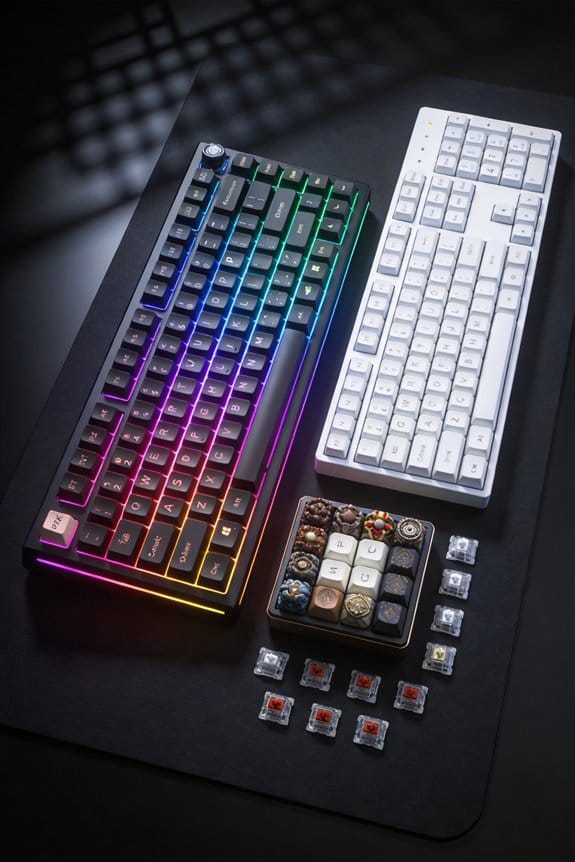

I recommend Cherry MX Brown tactile switches because they need about 45 g force and travel 2.0 mm, giving a noticeable bump without loud clicks, and pair them with PBT double‑shot keycaps that resist shine and enhance the tactile cue. Set your desk height to 28–30 inches, tilt the tray forward 5°, and use a 0.5‑in gel wrist rest to keep forearms parallel and elbows at 90°. Rest fingers lightly on the home row, stop near the 1.5 mm actuation point to avoid bottom‑out, and keep the USB‑C cable under 1.5 m for stable power. Following these steps will boost speed, and the next section shows how to practice efficiently.
Key Takeaways
- Choose tactile switches (≈45 g actuation, ~2 mm travel) with PBT double‑shot caps to feel bumps without loud clicks, aiding finger‑position feedback.
- Set desk height to 28–30 in, tilt keyboard tray forward ~5°, and use a ~0.5 in gel wrist rest to keep wrists neutral and elbows at ~90°.
- Keep forearms parallel to the desk, fingers curved naturally, and avoid bottom‑out by stopping near the actuation point (~1.5 mm travel).
- Use the F‑J bumps to locate the home row, rest fingers lightly, and practice keystroke accuracy before speed to develop muscle memory.
- Maintain switches with regular cleaning (isopropyl swabs, brush, air duster) and occasional Krytox lubrication to ensure consistent tactile feedback.
Pick the Best Switches for Faster Touch Typing
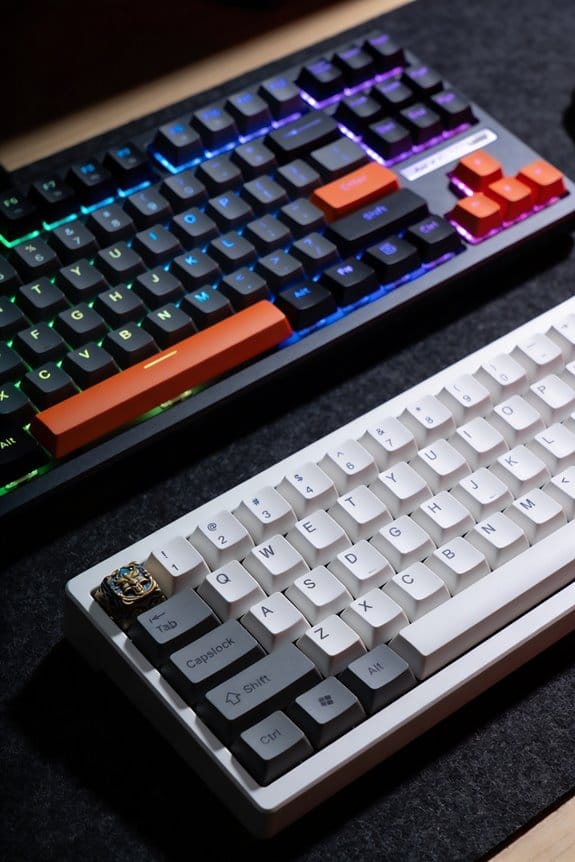
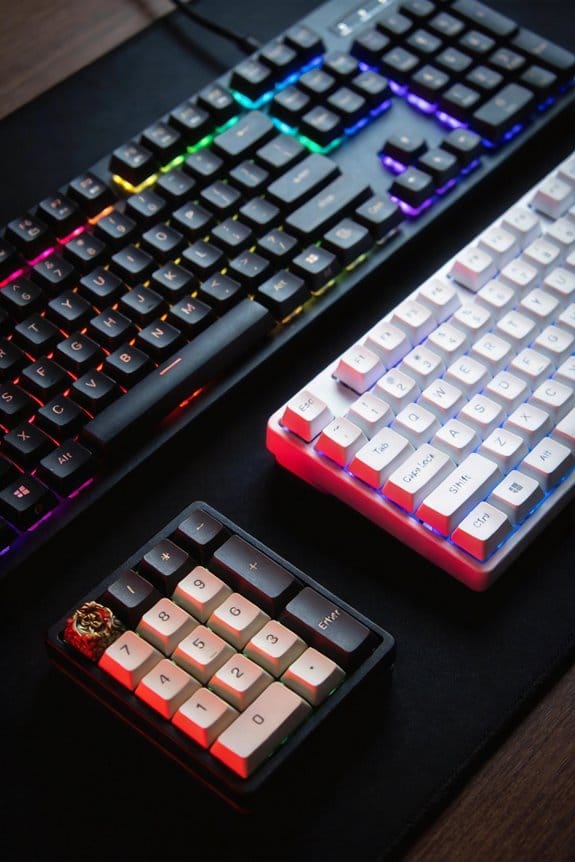
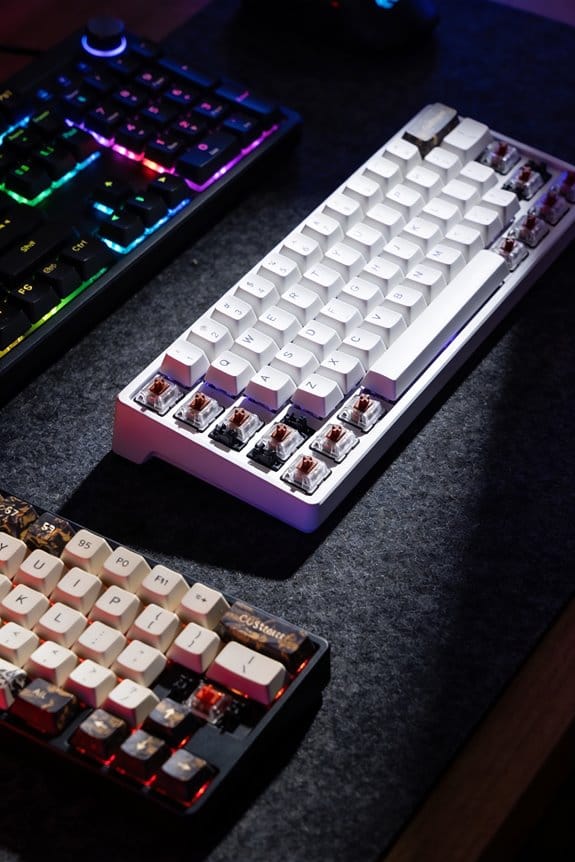
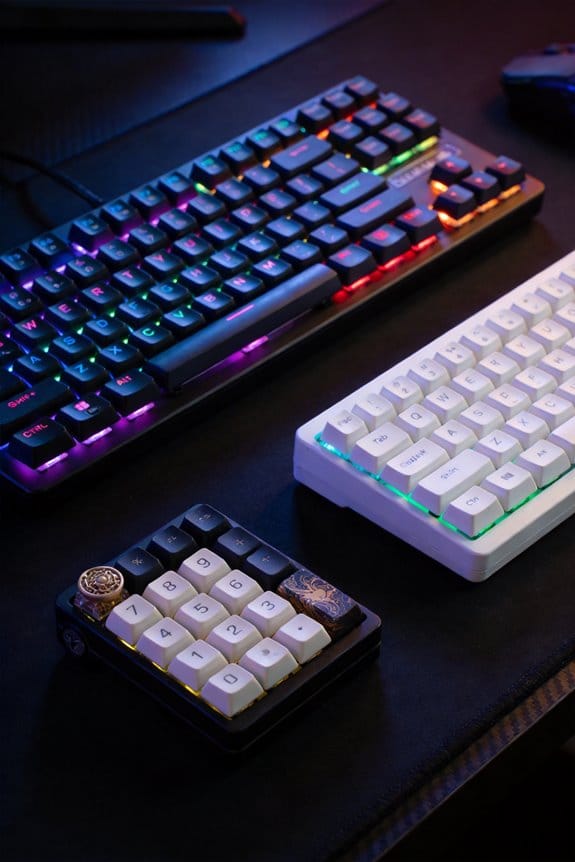
My experience shows that tactile switches—like Cherry MX Brown or Gateron Clear—are the sweet spot for faster touch typing because they give a noticeable bump without a loud click, which lets me confirm each actuation while keeping my fingers relaxed. In a switch comparison, tactile models sit between linear (smooth) and clicky (loud) options, offering moderate actuation force around 45–55 g and a travel distance of 2.0 mm, which reduces fatigue without sacrificing feedback. The keycap texture matters: PBT double‑shot caps provide a matte finish that resists shine and lets the tactile bump be felt more clearly, while ABS caps can feel slippery and mask subtle cues. I pair these switches with a 2 m USB‑C cable, 5 V 1 A power, and a USB‑C to USB‑A adapter, ensuring compatibility with most Windows, macOS, and Linux systems, but avoid older USB‑B ports that lack proper power delivery.
Set Up an Ergonomic Layout for Faster Touch Typing
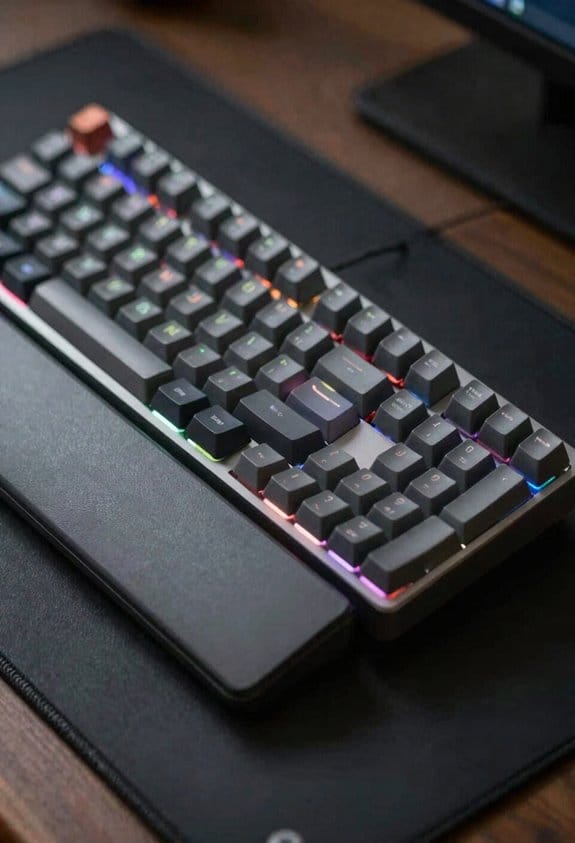
How can you arrange your workstation so that typing stays fast without hurting your wrists? I recommend setting the desk height to 28‑30 inches, using a keyboard tray that tilts 5 degrees forward, and placing a wrist‑rest made of gel that’s 0.5 inches thick. My ergonomic layout includes a split‑column key arrangement that keeps my elbows at a 90‑degree angle, and I position the monitor 20 inches away at eye level to avoid neck strain. For switch selection I choose tactile switches with a 45 cN actuation force, because they give a noticeable bump without a loud click, reducing finger fatigue. I connect the keyboard via a detachable USB‑C cable, 1.5 m long, to a USB‑3.0 port, ensuring 5 V / 0.5 A power delivery, and I avoid Bluetooth to eliminate latency. This precise setup lets me maintain speed while protecting my wrists.
Adopt Proper Hand Posture and Wrist Positioning

Ever notice how a slight bend in your wrist can turn a smooth typing session into a painful marathon? Proper hand posture means keeping your forearms parallel to the desk, elbows at a 90‑degree angle, and fingers curved naturally over the keys, which reduces strain and improves speed. Wrist positioning requires a neutral wrist line—neither flexed nor extended—so the wrist stays level with the forearm, and a low‑profile wrist rest can support this alignment without lifting the hand too high. I’ve found that a 2‑inch thick silicone pad placed just behind the home row provides the right height, while a keyboard with a 1.2 mm key travel minimizes the need to lift the wrist. Maintaining these angles prevents repetitive‑strain injury and lets the tactile feedback of mechanical switches work without extra effort.
Master Home‑Row Positioning for Faster Touch Typing

A solid home‑row setup starts with the “F‑J” bumps—those small raised markers on the F and J keys—that let you locate the central row without looking, which is essential because mechanical switches give a tactile bump and audible click that confirm each keypress instantly. I keep my fingers curved and rest them lightly on the home row, letting the switch stiffness—measured in gram force, usually 45 g for tactile switches—guide the depth of each press while the keycap profile—often an OEM or Cherry profile with sculpted heights—ensures my fingers naturally fall into the correct positions. I check that each key’s travel is about 1.5 mm, so the tactile bump arrives early enough to avoid bottom‑out, and I verify that the keyboard’s USB‑C cable is 1.5 m long, supporting 5 V 1 A power without lag. This precise alignment reduces finger fatigue and builds muscle memory faster.
Practice Deliberate Key Presses to Avoid Bottom‑Outing
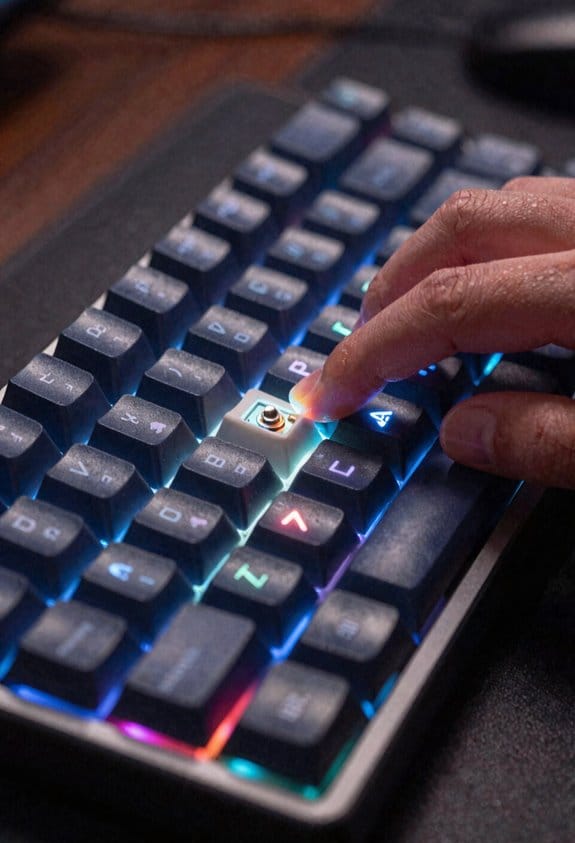
The tactile bump on a mechanical switch, which usually registers at about 45 g of force, lets me feel the actuation point before the key hits the bottom, so I can stop the press early and avoid bottom‑out; this habit reduces finger fatigue and keeps the keystroke consistent, especially when I’m using a Cherry MX Brown switch with a 1.5 mm travel distance and a 0.5 mm pre‑travel that gives a clear “click‑feel” without the loud clack of a clicky switch. I practice deliberate key presses by keeping my fingers just past the tactile bump, which means I never fully depress the key, thereby minimizing practice slips that cause accidental extra force. This controlled motion also protects the switch, reducing premature switch wear and extending the keyboard’s 50‑million‑stroke lifespan. By timing each press to the actuation point and releasing immediately, I maintain a steady rhythm, avoid unnecessary strain, and keep the keys responding reliably for long typing sessions.
Apply Proven Drills to Build Muscle Memory Fast
How can you turn a mechanical keyboard into a fast‑learning tool? I start each session with a 10‑minute warm‑up of practice drills that target the home row, because the tactile bump of a Cherry MX Brown switch (actuation force 45 g, travel 2.0 mm) gives immediate feedback that reinforces proper finger placement. I then run the 30‑second “alternating‑hand” drill, which forces each hand to type the same word sequence (e.g., “type type type”) to accelerate muscle memory while avoiding bottom‑out fatigue. For speed, I use the “row‑skip” drill, moving from row to row on a 2.5‑mm‑high keycap set, because the consistent click of a Kailh Box White (actuation 50 g) trains my brain to predict key locations. I repeat each drill three times, logging errors in a spreadsheet to track progress. This structured approach builds muscle memory fast without relying on vague practice.
Maintain Your Keyboard to Keep Faster Touch Typing Consistent
Keeping the keyboard clean and well‑lubricated is essential for maintaining the speed you’ve built, because dust and debris can increase key travel by up to 0.3 mm and cause the tactile bump of a Cherry MX Brown (45 g actuation, 2.0 mm travel) to feel mushy, which in turn raises error rates. I recommend a weekly keyboard maintenance routine that starts with switch cleaning using a 70 % isopropyl alcohol swab and a soft brush, then a gentle blow‑out with a 12 V air duster to remove particles from the PCB. After cleaning, apply a 0.5 mm thin layer of Krytox 205 gmL lubricant to each stem, making sure the oil does not seep onto the contacts. Finally, re‑assemble the keycaps, verify that the USB‑C cable (0.8 m, 5 A rating) seats firmly, and test each key with a key‑tester app to confirm consistent actuation.
Frequently Asked Questions
Do I Need a Specific Keyboard Size for Faster Touch Typing?
I don’t need a specific size; I focus on keyboard ergonomics and switch smoothness. A comfortable layout and the switches let me type faster without strain, so I just choose what feels right.
Can I Use a Wireless Mechanical Keyboard Without Latency Issues?
I’ll tell you straight: wireless mechanical keyboards can feel as snappy as a hummingbird, but watch wireless latency considerations and mechanical keyboard compatibility concerns—choose low‑latency Bluetooth or dongle models to keep your typing fluid.
How Often Should I Replace High‑Usage Switches?
I replace high‑usage switches roughly every 12‑18 months, depending on keystroke count, because that replacement frequency for key switches keeps the tactile feel consistent and smoothing switch travel improvements maintains speed and accuracy.
Will a Split Keyboard Affect My Typing Speed?
I’ve found a split layout feels like a balanced bridge, letting ergonomic keys guide my hands smoothly; it may initially slow me, but soon it steadies rhythm and actually boosts my typing speed.
Is a Keycap Material Choice Important for Typing Efficiency?
I think keycap materials matter for typing efficiency because PBT feels smoother and resists shine, while ABS can feel sticky and wear faster, which can distract your rhythm and slow your progress.