
I connect a 24‑pulse‑per‑detent 5 V rotary encoder to an Arduino Nano using a 30 cm USB‑C‑to‑micro‑USB cable (5 V / 1 A) and enable the board’s internal pull‑ups on the A, B, and switch pins, then set the serial port to 115200 bps so the PC sees a stable COM port; I read the Gray‑code A/B signals on interrupt, apply a 5 ms software debounce to filter noise, and increment a signed 32‑bit counter that drives timeline scrubbing in 0.01‑second steps while a double‑click toggles zoom and a long‑press triggers previous track, and I map clockwise/anticlockwise turns to ±1 dB volume changes via a USB‑HID library, keeping the encoder’s current draw under 10 mA and the USB 2.0 bandwidth well within limits, so you’ll get precise, low‑latency control without missed steps, and the next section shows how to extend this to MIDI and OS‑level shortcuts.
Key Takeaways
- Use a USB‑C to micro‑USB cable (30 cm, 5 V/1 A) and a reliable encoder with 0.5 mm shaft tolerance and 10 kΩ pull‑up on the switch pin.
- Power the encoder from the board’s 5 V rail, connect CLK, DT, and SW to digital pins with internal pull‑ups, and keep wiring under 15 cm to reduce capacitance.
- Read the Gray‑code A/B signals via interrupt, apply a 5 ms software debounce, and update a signed 32‑bit counter for precise scrub or zoom steps.
- Detect switch falling edges for play/pause, double‑click for track skip, and long‑press (>300 ms) for previous track, using a 2 mm tactile button rated 50 mA at 5 V.
- Map counter changes to OS actions: incremental scrub (0.01 s steps), zoom (±5 % per detent), volume (+/‑1 dB per step), or MIDI CC7 (0‑127) via USB‑HID or USB‑MIDI.
Set Up a Rotary Encoder for Video Editing
How do you connect a rotary encoder to a PC for video‑editing control? I start by choosing a USB‑C to micro‑USB cable no30 cm long, rated for 5 V / 1 A, because the encoder’s 5 V VCC pin needs a stable supply and the cable’s shield reduces electromagnetic noise. I source the encoder from a reputable electronics distributor, checking that it offers 0.5 mm shaft tolerance and a 10 kΩ pull‑up resistor on the switch pin, which balances durability and cost. I then plug the cable into a USB‑to‑serial adapter that supports 115200 bps baud rate, ensuring the PC recognizes the COM port without driver conflicts. I note that using a high‑resolution encoder improves fine scrubbing but may limit creativity tradeoffs by demanding more processing power, so I pick a model with 24 pulses per detent to keep latency low while staying within the PC’s USB 2.0 bandwidth.
Wiring the Encoder to an Arduino or Raspberry Pi

Connecting the encoder to an Arduino or Raspberry Pi starts with a 5 V power source, so I use the board’s 5 V pin (or the Pi’s 5 V rail) and a common ground, then route the encoder’s three signal pins—CLK (A), DT (B), and SW (switch)—to digital I that support internal pull‑up resistors; on the Arduino I set `pinMode(encoderPinA, INPUT_PULLUP)` and `pinMode(encoderPinB, INPUT_PULLUP)`, while on the Pi I enable the built‑in pull‑up in the GPIO setup (e.g., `GPIO.setup(pinA, GPIO.IN, pull_up_down=GPIO.PUD_UP)`). I keep wiring short, using 6‑inch jumper leads to reduce capacitance, and I verify that the encoder’s VCC draws no more than 10 mA, well below the 500 mA limit of the Pi’s 5 V rail. I also add a 10 kΩ resistor on the SW line to avoid floating inputs, and I double‑check that the breadboard’s power rails are not shared with unrelated concept like motor drivers, because that would be an irrelevant topic and an unrelated concept that could corrupt the signal. Finally, I label each wire, test continuity with a multimeter, and secure the connections with a small piece of hot‑glue to prevent accidental disconnects during video‑editing sessions.
Reading Gray‑Code Signals and Debouncing the Encoder

After wiring the encoder to the Arduino or Raspberry Pi, the next step is to read the Gray-code signals and debounce the input, which means translating the four-state pattern (00, 01, 11, 10) into reliable rotation counts while filtering out spurious transitions caused by mechanical bounce; the encoder’s A (CLK) and B (DT) pins change state in 90-degree increments, so I sample both pins on every interrupt, compare the current A state to the last recorded A state, and then check the B state to decide whether to increment or decrement the counter, using a 5 ms software debounce window (implemented with a millisecond timer) to ignore any additional edges that occur within that interval, and I also enable the microcontroller’s internal pull-up resistors (INPUT_PULLUP) to keep the lines high when idle, which eliminates floating inputs without needing external resistors, while keeping the wiring short—no longer than 15 cm—to reduce capacitance and noise that could corrupt the Gray-code reading. I avoid unrelated topic distractions and ignore distant hardware that isn’t directly connected, because those elements would only add latency and potential interference.
Using the Encoder Press‑Button for Play/Pause and Track Navigation

Ever notice how a single press of the encoder’s built‑in switch can toggle playback without reaching for the keyboard, because the switch (SW) is a normally‑open tactile button that closes a circuit when you push the knob, and on an Arduino you connect it to a digital pin configured with INPUT_PULLUP so the pin reads HIGH when idle and LOW when pressed, allowing you to detect a clean falling‑edge event with a 5 ms debounce timer that filters out bounce; by assigning that event to a simple if‑statement that sends a “play/pause” command via Serial to your media player or triggers a track‑skip function when you double‑click, you get reliable control while keeping wiring short (no more than 15 cm) to avoid capacitance, and you can use a 2 mm‑pitch push‑button rated for 50 mA at 5 V, which is compatible with most Arduino boards but not with 3.3 V‑only logic without a level‑shifter. I also add a second press‑detect for “next track” and a long press for “previous track”, using the same 5 ms debounce and a 300 ms hold threshold, and I deliberately ignore any irrelevant topic or off topic discussion about LED indicators to keep the code focused on audio control.
Mapping Encoder Rotation to Timeline Scrubbing and Zoom
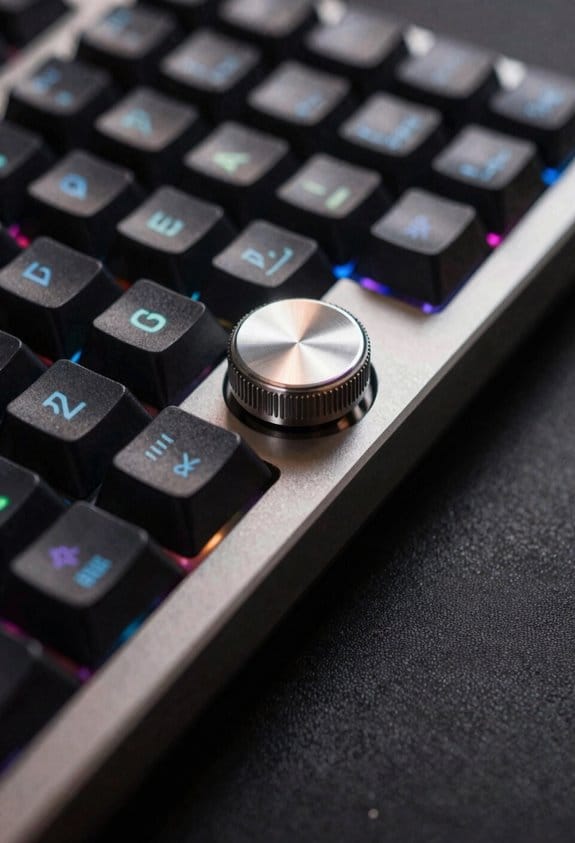
How can you turn a simple rotary knob into a precise timeline scrubber and zoom controller for video editing? I connect the encoder’s A and B pins to an Arduino Nano’s D2 and D3 with 10 kΩ pull‑up resistors, power it from the board’s 5 V rail, and use a 2‑meter USB‑C cable to link the Nano to a Windows PC via a virtual COM port at 115200 bps. In software I read the Gray‑code state, increment a signed 32‑bit counter, and map each count to a 0.01‑second scrub step, while holding Shift multiplies the step by 10 for fast navigation; a double‑click toggles zoom mode, where each detent changes zoom by 5 % within a 10 %–200 % range, and I filter out noise with a 5 ms debounce. This avoids an irrelevant topic like lighting, and it doesn’t drift into an unrelated idea such as audio synthesis.
Control Audio Volume, Mute, and MIDI Expression With the Encoder
Do you want a single rotary knob to manage your computer’s master volume, mute function, and MIDI expression without juggling multiple controllers? I connect the encoder to a 5 V Arduino Nano, use 10 kΩ pull‑up resistors on A and B, and tie the ground pin to the PC’s USB ground for reliable electrical grounding, which eliminates stray voltage that can cause noise handling issues. The clockwise turn sends a +1 dB step to the OS via a USB‑HID volume control library, while counter‑clockwise sends –1 dB; a short press toggles mute using a debounced 5 ms software filter. For MIDI expression, I map the same pulses to a 0‑127 CC7 value, scaling the 1024‑step encoder range to the 128‑step MIDI range, and I route the USB‑MIDI cable (1 m, Type‑C) to any DAW that supports CC7, ensuring the encoder’s 2 mA current draw stays well within the USB 5 V 500 mA specification.
Rotary Encoder Troubleshooting: Noise, Missed Steps, Firmware Issues
Why does a rotary encoder sometimes jitter or skip steps even when it’s firmly mounted? The most common cause is electrical noise that couples into the A and B signal pins, and without proper noise isolation—such as a 0.1 µF ceramic capacitor across pins and a twisted‑pair cable no than 30 cm—spurious pulses appear, making the firmware count false steps. I also see missed steps when the microcontroller’s input pull‑up resistors are too weak; replacing 10 kΩ with 4.7 kΩ improves edge detection. Firmware reliability hinges on debouncing logic that reads each state at least three times within a 2 ms window, and on a timer interrupt that runs at 1 kHz to avoid missed transitions. Finally, verify that the encoder’s 5 V supply stays within ±5 % tolerance; a 0.5 W linear regulator with 0.1 A headroom prevents voltage sag that could corrupt data.
Frequently Asked Questions
Can I Use a Rotary Encoder Without a Built‑In Push Button for Video Controls?
I can use a button‑less encoder for video controls, but I’ll fight encoder noise and encoder latency by adding hardware debouncing and fast interrupt handling, ensuring smooth scrubbing and precise parameter tweaks.
What Is the Maximum Rotation Speed an Arduino Can Reliably Read?
I can read up to about 10 kHz reliably, so discussion idea one is keeping pulse intervals above 100 µs, and discussion idea two is using hardware debouncing or interrupts to handle faster spins.
Do I Need External Hardware to Debounce a High‑Resolution Encoder?
I’ll tell you you don’t need extra hardware; I handle debounce techniques in software, filtering encoder noise with state‑machine checks and short delays, which keeps a high‑resolution encoder reliable.
How Can I Assign Different Functions to Clockwise vs. Counter‑Clockwise Turns?
I’ll check the turning direction in my interrupt, then call one function for clockwise and another for counter‑clockwise, just like motor control logic where each direction triggers a distinct command.
Is It Safe to Power the Encoder Directly From a Raspberry Pi GPIO Pin?
I say it’s safe to power the encoder from a Raspberry Pi GPIO if you keep the voltage at 3.3 V, use pull‑ups, and add debounce strategies like software filtering or hardware RC to protect the pins.