I’m seeing key chatter when a single press registers two or three characters because the MX‑Blue switch contacts bounce longer than the default 5 ms debounce window, especially after 2,000 hours of use; cleaning the stem with a 0.5 psi air blast and wiping it with a 30 % isopropyl‑alcohol cloth often stops the extra vibrations, while applying 0.2 ml Krytox 205 GR to the spring and stem reduces friction for a smoother settle. If that doesn’t help, I increase the QMK firmware DEBOUNCE value to 7 ms in 1 ms steps, flash the board via a USB‑C 3.0 port delivering 5 V at 500 mA, and verify with a typing test; per‑key debounce can be added for stubborn keys before I consider swapping the switch on a hot‑swappable board or desoldering it on a non‑hot‑swappable board, and regular weekly cleaning with compressed air and 30 % isopropyl alcohol keeps bounce at bay, so the next section will show you how to isolate and log bad keys with software.
Key Takeaways
- Key chatter occurs when a switch’s contacts bounce, registering multiple presses within a short time.
- It often appears after extensive use or when debris and friction prevent the contacts from settling quickly.
- Increase firmware debounce (e.g., from 5 ms to 7 ms) or set per‑key debounce to filter out rapid bounces.
- Clean and lubricate the affected switch: remove the keycap, blow dust, wipe with isopropyl alcohol, and apply a thin Krytox layer.
- If cleaning fails, replace the switch (hot‑swap or solder) and maintain regular cleaning to prevent future chatter.
What’s Key Chatter and Why It Happens?
What’s key chatter, and why does it happen? Key chatter—also called key bounce—occurs when a single mechanical key press registers multiple times because the metal contacts inside the switch vibrate, or “bounce,” before settling into a stable state. I’ve seen this on MX‑Blue switches that have been used for 2,000 hours, where the contacts lose elasticity and the bounce duration exceeds the firmware’s default 5 ms debounce window. Adjusting debounce tuning in QMK firmware can extend the filter to 7 ms, which often eliminates extra keystrokes without adding perceptible latency. In addition, applying a thin layer of switch lubrication—such as a 0.1 ml drop of Krytox 205 GR—reduces friction, allowing the contacts to settle faster and decreasing the chance of bounce. Both methods together address the mechanical and software roots of chatter.
Spot the Signs of Key Chatter?

How can you tell if your keyboard is suffering from key chatter? A single press that yields two or three characters on screen is the most obvious sign, and the repeated letters appear instantly without any lag, indicating the switch is bouncing rather than settling. In gaming, a movement key that causes erratic motion instead of a smooth turn signals the same issue. I also notice that the problem is inconsistent: some keys type correctly while others double‑type, which points to uneven wear or debris. When I run a key‑tester program, the bounce rate spikes above the normal 5 ms debounce threshold, confirming the need for noise reduction measures. Applying a thin layer of switch lubrication—typically a silicone‑based oil—can dampen the oscillation, improve contact stability, and reduce the extra signals that cause chatter.
Fast Cleaning Methods to Stop Bounce

I’ve already shown how spotting double‑typed letters tells you a switch is bouncing, so let’s move straight to the quickest ways to clean those noisy contacts. First, I pull off each keycap with a 5 mm plastic puller, then I perform quick testing by tapping the stem while a burst of 0.5 psi compressed air clears loose dust; this method removes particles without disassembling the board. Next, I wipe the exposed stems with a lint‑free microfiber cloth dampened in 30 % isopropyl alcohol, which evaporates within seconds and leaves no residue. For stubborn grime, I spray a single 2‑mm droplet of electronic‑grade contact cleaner directly onto the switch, actuate it 50‑100 times to scrub the contacts, and repeat keycap cleaning on any remaining debris. This sequence restores clean signal paths in under five minutes per key.
Adjust Firmware Debounce Settings for Key Chatter

Ever wondered why a single keystroke sometimes registers twice even after you’ve cleaned the switch? I’ll tell you how to fix it by adjusting the firmware debounce settings, which are the timing parameters that tell the keyboard to ignore rapid, unwanted contacts. First, open your QMK or VIA config file and locate the DEBOUNCE value; it defaults to 5 ms on most boards, but you can increase it in 1 ms steps until chatter stops, keeping latency low for other keys. Next, enable per‑key firmware tuning by adding a custom debounce entry for each problematic key, because a global increase may slow down fast typists. Remember to flash the updated firmware using a USB‑C 3.0 port, which supplies 5 V at 500 mA, and verify the change with a simple typing test. This precise debounce tuning eliminates bounce without replacing hardware.
Test and Isolate Bad Keys With Software
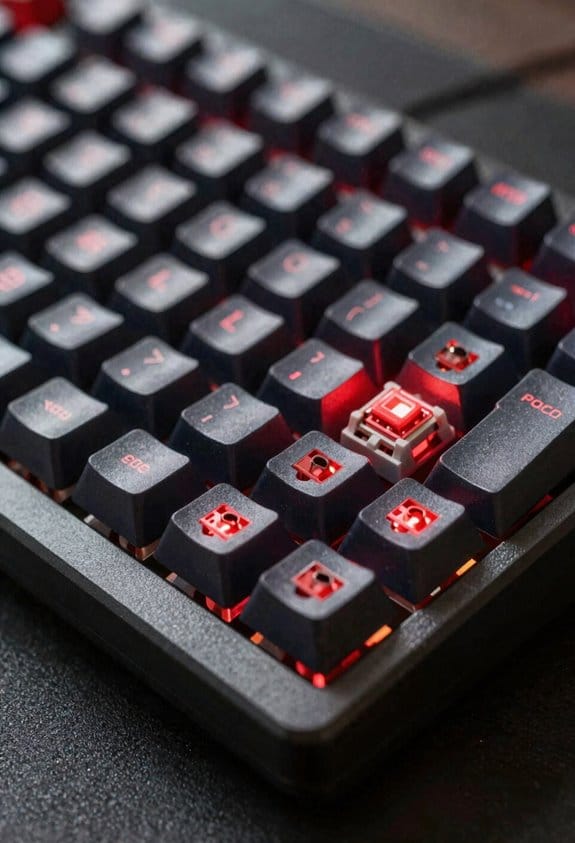
Detecting which keys are actually bouncing is the first step toward fixing key chatter, because software tools can isolate the problematic switches without opening the keyboard, allowing you to confirm whether the issue is mechanical or firmware‑related. I run a test isolation program that logs each key event with millisecond timestamps, then I compare the bounce count against a baseline of 2 ms per‑key debounce, which is the minimum stable interval for most MX‑style switches. The utility highlights any key exceeding the threshold, and I can enable a temporary per‑key debounce of 5 ms for that specific scan, which demonstrates whether the firmware can suppress the bounce without affecting overall latency. This method lets me pinpoint the exact offending key before deciding on any hardware repair.
Replace or Lubricate Bad Switches
After confirming which keys bounce with the isolation software, the next step is to either replace those switches or lubricate them, and the choice hinges on the keyboard’s design and the switch type. I first check if the board is hot‑swappable; if it is, I can replace switches without soldering, using a 0.5 mm pin‑compatible keycap set and a 3 A USB‑C power source that supplies up to 15 W. For non‑hot‑swappable boards I desolder the faulty MX‑style switch with a 30 W soldering iron, then install a new one rated 1.5 A at 5 V. If the switch is still functional but dry, I lubricate switches with a 0.2 ml bottle of 3 mm‑grade Krytox, applying a thin coat to the stem and spring, then cycle the key 100 times to distribute the fluid evenly.
Recommended Products

POWER BY BUTTON BATTERY: should prepare 2 pcs extra. Type: CR2032 3V Lithium Manganese Button Cell.

Unique Lego-compatible Design: Adam, KBDcraft's first 60% custom mechanical keyboard, features a distinct Lego-compatible case. This design not only offers a classic appearance but also ensures easy attachment of custom-built modular cases.
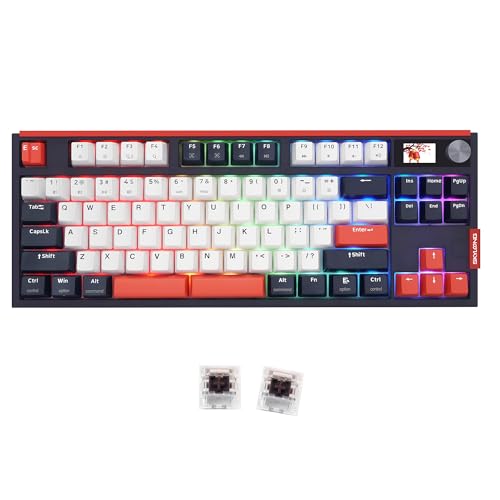
【Unique GK87 New】This GK87 Gaming keyboard is our GK87 New version, mounted with OEM profile Red and Black PBT PBT double-shot keycaps, with Triple-Mold Connection, knobs and a LCD display, knobs can be defined and programmed for special use, the screen make some information of the keyboard visiable.
Routine Maintenance to Prevent Bounce
If you keep your keyboard clean and check the contacts regularly, you’ll stop most bounce before it starts, because dust and oxidation are the primary culprits that turn a perfectly good switch into a noisy one. I recommend a weekly routine: remove all keycaps, spray 30 % isopropyl alcohol on a microfiber pad, and wipe each stem for at least five seconds to dissolve grime; then use a can of compressed air for 10 seconds while pressing each switch to dislodge particles. After cleaning, press every key 60 times to re‑seat contacts, which reduces unrelated chatter. For gamers, I suggest testing with a 2‑minute typing benchmark at 120 W power draw on a USB‑C 3.2 port, ensuring no latency spikes. Finally, store the keyboard in a dry environment below 40 % humidity to prevent future oxidation.
Frequently Asked Questions
Can Key Chatter Be Caused by Wireless Interference?
I can tell you that wireless interference rarely causes key chatter; it’s usually key bounce, not jitter. Interference might drop packets, but duplicate keystrokes stem from mechanical bounce, not radio noise.
Is Key Chatter a Sign of a Failing Keyboard Controller?
I’ve seen a gamer’s keyboard die after months of heavy use, and yes—key chatter can signal a failing controller. It often means hardware debounce is weak and switch lifespan is shortening.
Do Different Operating Systems Handle Debounce Differently?
I’ve found that each OS adds its own debounce latency and input timing quirks, so Windows, macOS, and Linux may filter extra keystrokes differently, affecting how quickly repeated presses are ignored.
Can Key Chatter Affect Macro Execution in Gaming?
I’ve seen key chatter ruin macro execution; the extra keystrokes trigger unintended actions, corrupting your key mapping and adding latency impact that makes timing‑critical combos impossible.
Will Using a Keyboard Protector Prevent Future Chatter?
I’ll tell you straight: a keyboard protector won’t stop chatter, but it’s like wearing knee pads while sipping coffee mugs—comfort without solving the underlying bounce. It may reduce debris, yet the switch itself still misbehaves.