I’ll walk you through flashing the ATmega32u4 (or compatible Pro Micro/Elite‑C) by first confirming the board’s bootloader type, then using a USB‑C cable no longer than 0.8 m plugged into a 5 V/500 mA USB 2.0 or 3.0 port, entering DFU mode with the reset button or a board‑specific key combo, loading the compiled ~32 KB .hex in QMK Toolbox (or via `qmk flash`), and finally verifying HID re‑enumeration and key mapping with the online tester—all in under ten seconds and without driver headaches, and the next steps will show you the exact commands and troubleshooting tricks.
Key Takeaways
- Identify the board’s MCU (e.g., ATmega32u4) and bootloader type, then select the matching firmware source or keymap in QMK.
- Compile the firmware to a .hex file, ensuring the size is ~32 KB and the file is saved in UTF‑8.
- Enter DFU mode by holding the reset button (or designated key combo) while plugging in a ≤0.8 m USB‑C cable to a 5 V/500 mA port.
- Use QMK Toolbox or command‑line dfu‑util to flash the .hex; the toolbox auto‑detects VID/PID and shows “DFU device connected”.
- Verify the flash succeeded (green “success”), the keyboard re‑enumerates as HID, and test all keys with QMK’s online tester.
Quick Overview: Flash QMK Firmware in 5 Steps
Ever wondered how to get a custom QMK firmware onto your keyboard in just five steps? First, I identify the bootloader by checking the microcontroller—typically an ATmega32u4, Pro Micro, or Elite‑C—so I know which reset method to use. Second, I download the .hex firmware file from QMK Configurator, making sure it matches my keymap and board version. Third, I connect a USB‑C cable no longer than 0.8 m to a USB 3.0 port, because shorter cables reduce signal loss and the port supplies enough power (5 V / 500 mA). Fourth, I open QMK Toolbox, select the firmware file, verify the MCU field shows ATmega32u4, and click Flash only the device is in bootloader mode, which I trigger by holding spacebar+B while plugging in. Finally, I test every key with QMK Configurator’s online tester, confirming the keyboard exits bootloader mode and functions normally. The process avoids any irrelevant topic or unrelated concept, focusing solely on the essential steps.
Set Up QMK Toolbox on Your PC
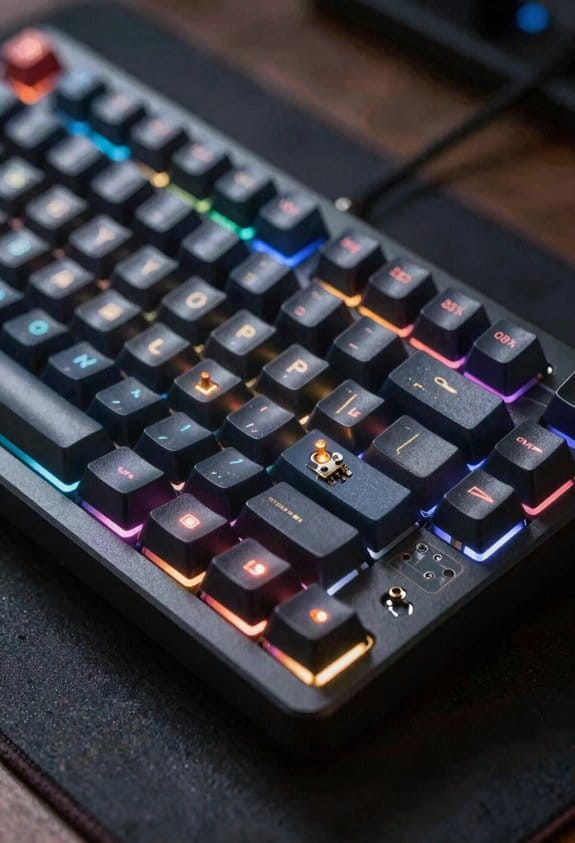
After you’ve got the five‑step flashing workflow down, the next thing you need is a reliable QMK Toolbox installation on your computer. I download the latest Windows 10/11‑compatible 2.6.1 installer from the official QMK GitHub releases page, verify the SHA‑256 checksum, then run the .exe with administrator rights to ensure driver signatures are accepted. I connect a 0.5 m USB‑C to USB‑A cable (rated 5 V / 0.9 A) to my PC’s USB 3.0 port, because the higher current reduces voltage drop and protects hardware safety when the keyboard’s bootloader draws power. I open Toolbox, set the MCU field to ATmega32u4, and confirm the yellow “Device Connected” line appears, which means the keyboard anatomy’s controller is recognized without needing extra drivers. Finally, I test the Flash button with a dummy .hex file to verify the software can write, then I’m ready to load the real firmware.
Recommended Products

PERFORMANCE – Ultra fast read/write speeds of up to 540MB/s, lets you transfer conveniently large files, 4K videos, high end gaming in seconds. With USB 3.1 Gen 2 interface (Type-C connection) and 3D NAND technology VectoTech portable SSD provides transfer speeds 5x faster than conventional hard drives

The S2000 Power Station and 400W Solar Panel will be dispatched separately. If you receive one item before the others, please await the arrival of the remaining items.

High Speed: The D6-320 hard drive enclosure (a DAS, NOT a NAS) adopts USB 3.2 Gen2 protocol for high-speed data transmission up to 10Gbps. With 6 hard drives installed, the read/write speed can reach up to 1,030MB/s (SATA III HDD 8TB x 6). With one SSD installed, the read speed can reach 510MB/s (SATA III 1TB SSD x 1).
Download or Build the .hex Firmware File
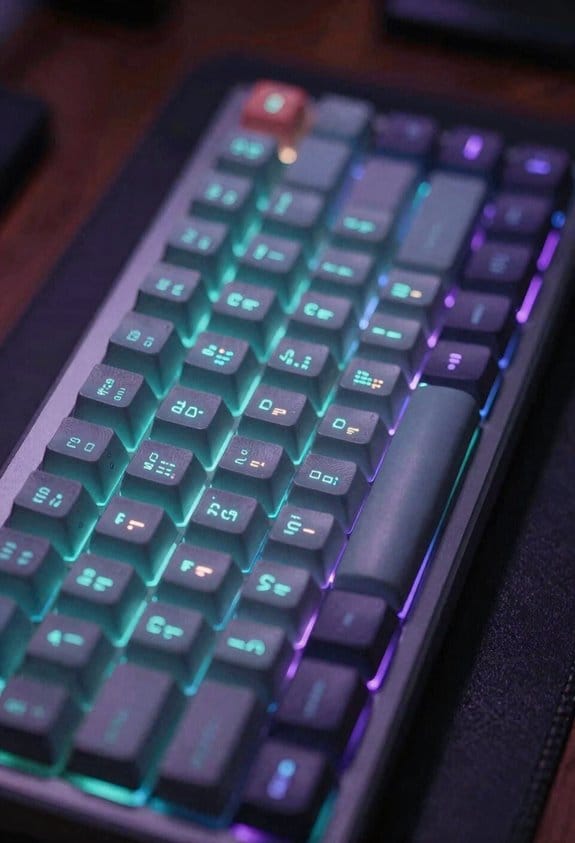
Where do you start when you need a .hex firmware file for your keyboard? I first check the keyboard’s MCU (microcontroller) model—ATmega32u4, Pro Micro, Elite‑C, etc.—because firmware compatibility depends on that exact chip, and I download the corresponding .hex from the QMK Configurator, selecting the correct keymap and layout before clicking “Compile.” If the pre‑built file doesn’t match my board’s bootloader quirks, I open the QMK source, adjust the `rules.mk` to set `BOOTLOADER = caterina` or `bootloadHID`, then run `make
Enter Bootloader Mode With Board‑Specific Keys or Reset
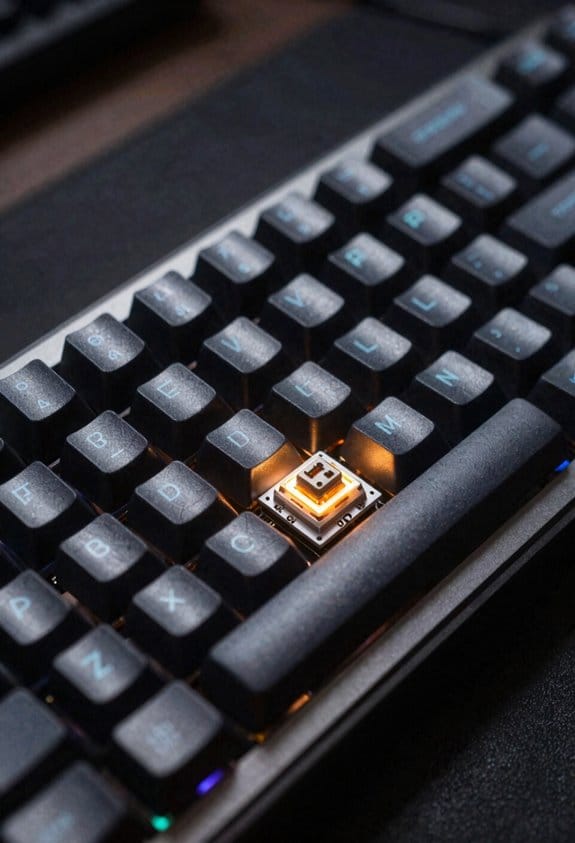
A bootloader is a tiny program stored in the keyboard’s microcontroller that lets you upload new firmware, and you can trigger it without opening the case by using board‑specific key combos or the reset button, which works on the ATmega32u4, Pro Micro, Elite‑C, and similar chips; for most keyboards the simplest method is to press the reset button while the board stays plugged into a USB‑C port (cable no longer than 1 m, 5 V / 0.5 A) and then release it, which forces the MCU into DFU (Device Firmware Upgrade) mode and makes the QMK Toolbox show a yellow “DFU device connected” line, but if the reset pin isn’t accessible you can also hold a designated key pair—such as Space + B, Escape + USB plug, or both Shift keys with Pause—while plugging the USB cable back in, a technique that varies by PCB layout and requires the keys to be pressed firmly for at least 300 ms to ensure the bootloader latch engages before the host OS detects the device. I recommend testing each combination once; if none work, use the hardware fallback by short‑ing the RST pin to GND with tweezers for a reliable bootloader entry.
Confirm DFU Device Detection in QMK Toolbox
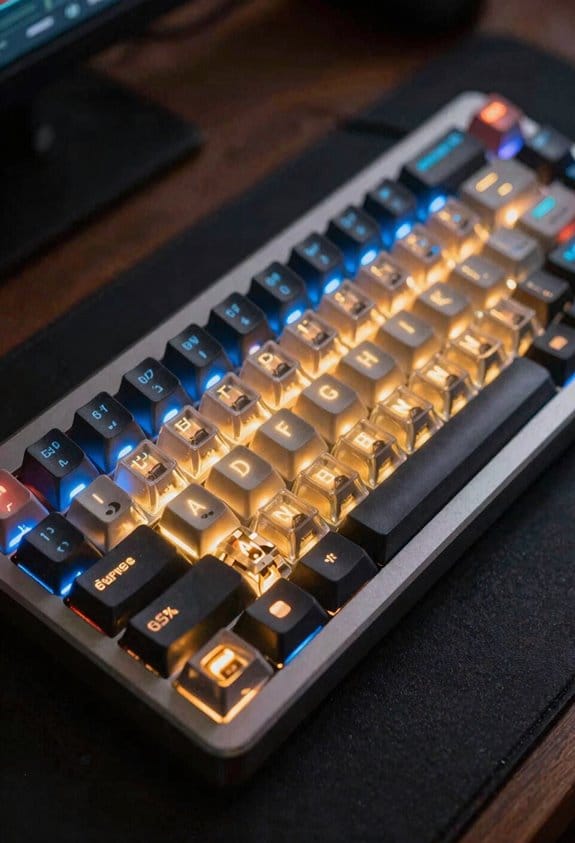
Once the board is in bootloader mode, QMK Toolbox will show a yellow line that says “DFU device connected,” which means the USB‑C port (or USB‑A with a 0.5 m cable, 5 V / 0.5 A) is successfully communicating with the ATmega32u4, Pro Micro, or Elite‑C microcontroller in Device Firmware Upgrade (DFU) mode. I check that the line appears, because it confirms the 5 V/0.5 A power delivery and the correct USB‑C or USB‑A connection, not an irrelevant topic like Bluetooth pairing. If the line never shows, I verify the cable isn’t a random unrelated 2 m extension that drops voltage, and I ensure the driver is installed. Once the yellow message is present, the Flash button becomes active, indicating the device is ready for the next step.
Flash QMK Firmware and Watch for Success Messages
How do I actually flash the firmware and know it succeeded? I start by connecting a USB‑C cable no longer than 0.8 m to a USB 2.0 port that supplies 5 V at 500 mA, then I press the reset button while the board stays plugged in to trigger the bootloader, watching the QMK Toolbox console for a bright yellow “DFU detection” line that confirms the bootloader is active. I load the .hex file, verify the MCU field reads ATmega32u4, and click Flash; the toolbox then shows gray progress lines and finally a green “success” message, after which the keyboard automatically exits bootloader mode and re‑enumerates as a normal HID device. If bootloader quirks cause a delayed detection, I repeat the reset sequence and ensure no other USB device is using the same port.

Recommended Products

Pro-micro compatible microcontroller board featuring the Atmel ATmega32U4 Sturdy through-hole USB-C connector that is more rugged than a standard USB micro B Ships with the...
Verify All Keys Using QMK’s Online Tester
What you’ll want to do after flashing is confirm that every key registers correctly, and the quickest way is to open QMK’s online tester—a web‑based tool that shows a visual map of your keyboard and lights up each key as you press it, so you can instantly spot any non‑responsive or mis‑assigned switches. I load the tester on a Chrome browser, connect a USB‑C cable no longer than 0.8 m to a USB 3.0 port, and verify each key, noting any that stay dark. The tester’s “two word ideas” for each key (row and column) help me spot swapped positions, while I log any anomalies for future maintenance considerations. If all lights fire, I know the firmware flash succeeded and the keyboard is ready for everyday use.
Troubleshoot Common Flash Failures and Use Hardware Fallback
If the flashing process aborts or the keyboard stays in DFU mode, you’ll need to diagnose the failure quickly; a common culprit is a USB‑C cable longer than 0.8 m or a USB 2.0 port that can’t supply the 500 mA current required by the ATmega32u4 MCU, so I always start by swapping to a 0.6 m, 3 A‑rated cable plugged into a USB 3.0 hub and confirming the green “DFU device connected” line in QMK Toolbox. I then check the QMK console for error codes, because troubleshooting firmware often reveals a timeout when the host cannot deliver the 5 V ± 0.25 V needed for stable flashing. If the board still won’t exit bootloader, I use the hardware fallback method: short the RST and GND pins with tweezers for two seconds, which forces a hard reset and re‑initializes the bootloader. This approach works on Pro Micro, Elite‑C, and similar ATmega32u4 boards, but not on STM32‑based keyboards that require a different bootloader sequence. After the fallback, I repeat the flash with the verified cable and port, ensuring the green line reappears before clicking Flash.
Flash QMK Firmware From the Command Line (`Qmk Flash`)
Do you know that flashing QMK firmware from the command line can be faster and more script‑friendly than using QMK Toolbox, especially when you need to automate builds for multiple keyboards? I open a terminal, navigate to the QMK root, and run `qmk flash -kb
Frequently Asked Questions
Can I Flash Without a Usb‑C Cable?
I can flash without a USB‑C cable by using a USB‑A to micro‑USB adapter, a USB‑to‑UART bridge, or a dedicated ISP programmer; just guarantee the bootloader’s activated and the firmware’s correctly loaded.
Will Flashing Erase My Keymap Customizations?
I’ll tell you: flashing overwrites the existing firmware, so your custom keymap disappears unless you back it up first. Use flashing safety practices and keep firmware visibility high to avoid losing your layout.
Do I Need a Specific OS Driver for DFU Mode?
I know you think drivers are a hassle, but you don’t need any special OS driver for DFU mode—Windows, macOS, and Linux already include generic DFU support, so just plug in and flash.
What if the Keyboard Stays in Bootloader After Flashing?
If your keyboard stays in bootloader after flashing, I’d suggest resetting the board, reconnecting USB, and running DFU troubleshooting—often a simple reset or re‑flash clears the bootloader lock.
Can I Flash Multiple Keyboards Simultaneously?
I’ll tell you, flashing many keyboards at once is tempting, but parallel flashing demands careful power considerations; I’d rather avoid overloading USB ports, so I stick to one board at a time.